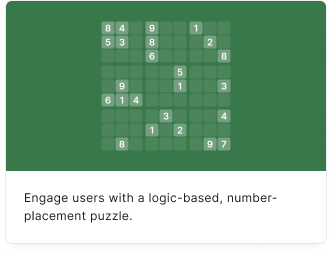
Engage your audience with the classic logic-based, number-placement puzzle. Sudoku is great for daily challenges, educational content, and keeping your audience engaged for longer periods.
- Click on ADD A BLOCK and select Sudoku.
- Enter a title and description, and add an image by clicking on Add image, GIF, or video/audio file (all optional).
- Under Minigame, use the slider to define a level of difficulty between 0 (easy) and 100 (hard).
Click on REGENERATE to create a new sudoku puzzle.
Click on SHOW SOLUTION to see the completed sudoku with the missing numbers in black and the original starting numbers in grey. - Under Success message, enter a text for your audience once they complete the sudoku correctly.
Click on the options icon on the right to configure the following settings.
| Option | Description | Default |
|---|
| Show media | Toggle to show or hide the block's main image. | ON |
| Media ratio | Choose the aspect ratio: From settings, Wide 16:9, Square 1:1, Tall 3:4, or Original ratio. | From settings |
| Option | Description | Default |
|---|
| Score | The number of points awarded for completing the sudoku. | 1 |
| Option | Description | Default |
|---|
| Show success message | Display a congratulations message when the sudoku is completed correctly. | ON |
| Show success message media | Add an image or video to the success message. | OFF |
| Option | Description | Default |
|---|
| Show rules to user | Display a "How to play" overview explaining the rules of sudoku. | ON |
| Allow error checking | Let your audience check their progress for mistakes. | OFF |
| Allow conflict highlighting | Highlight conflicting numbers so your audience can see errors in real time. | OFF |
| Refresh interval | Automatically generate a new sudoku puzzle at a set interval. Options: None, Hourly, Daily, Weekly, Monthly. | None |

